You can now localize Interactive Demos and Videos with AI voiceovers, multilingual subtitles, and synchronized transcripts, just like you already can for Step-by-Step Guides.
Add multiple languages to a Flo: Add a new language from the language selector, then choose Translate to auto-translate your existing content, or Copy to carry it over unchanged for manual editing. Refer to How to add multiple languages to a Flo for a step-by-step walkthrough.
AI voiceovers per language: Switch on AI voice for any added language to generate a narration script automatically. From there, you can:
Choose a voice — pick from the voice dropdown for each language
Regenerate the script — click Update script and describe the change you want, like a friendlier tone
Save multiple versions — keep up to 10 script versions and switch between them anytime. Refer to How to add AI Voiceover to your Flo for a step-by-step walkthrough.
Multilingual subtitles: Turn on subtitles for a language and click + Add to bring in subtitles for additional languages, generated from your default language. Refer to How to add multilingual subtitles to a Flo for a step-by-step walkthrough.
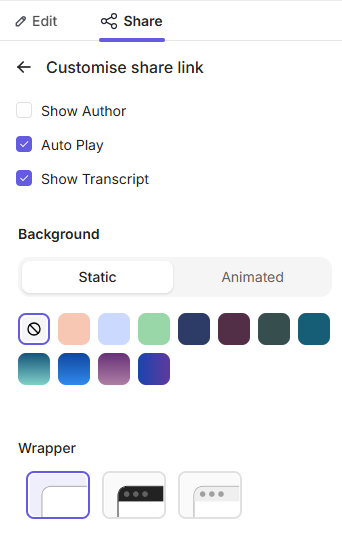
Synchronized transcripts: Turn on Show Transcript under Share customization settings so viewers get a scrollable transcript that stays in sync with playback.
Viewers can switch Language and Subtitles independently from the player controls, so they can listen in one language while reading subtitles in another.
Perfect for delivering multilingual, accessible product walkthroughs to a global audience.
-p-130x130q80.avif)
.avif)
.svg)