-p-130x130q80.avif)

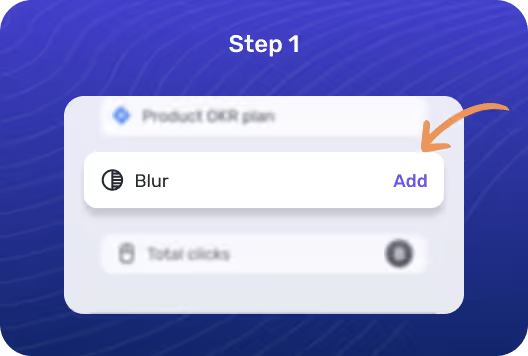
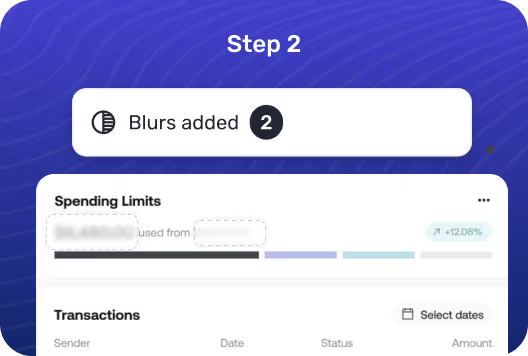
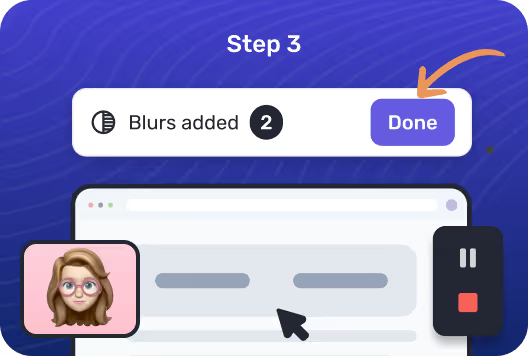
Once you click on the chrome extension, the recording will pause immediately. You will be able to see the screen pop up with the Blur button.
Choose the blur option from the right side of the pop up screen and start adding blurred spots on a tab or across multiple tabs/windows.
Once completed, hit done on the bottom-left corner of your screen. You can now resume or start your screen capture.
.avif)
Sales teams can now share success case study collaterals from relevant industries by fading out sensitive information of existing customers

During async demos, prevent accidental sharing of confidential details while still conveying the necessary information by hiding crucial elements

While using product screenshots in explainer videos and sharing across social media, or websites, blurring can help hide personal data

In certification courses or webinars, blurring can be used to hide irrelevant parts of a screen and focus on specific sections to prevent distractions.
%20(1).avif)
%20(1).avif)
.avif)
.svg)