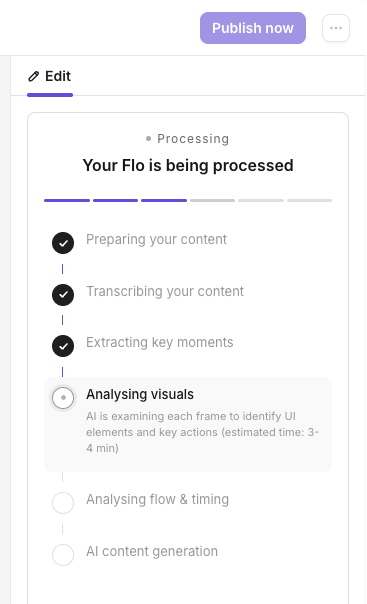
Processing and publishing now show detailed, real-time progress, so you're never left guessing what's happening or how long it'll take.
Granular progress stages: Instead of a single generic status, you now see each individual stage as it happens — from content prep and transcription to AI analysis and content generation.
Time estimates on longer stages: Steps that take a bit longer, like analysing visuals, now show an estimated completion time, so you know what to expect.
Clearer status messaging everywhere: The same commitment to transparency now runs across Floik, including:
Creating a new Flo — track prep, transcription, key-moment extraction, and AI content generation as they happen
Publishing a Flo — follow along through asset prep, video processing, preview generation, and link publishing
AI Voice generation — see a live status message, like "Synthesizing AI voice from your script," while your narration is generated
Other background tasks — get the same visibility across any long-running process
Google Workspace SSO for Viewer Access
You can now require a Google sign-in before viewers can access your private Flos, using Google Workspace SSO.
Set it up from Settings → Viewer Access (SSO) by connecting your Google Cloud OAuth Client ID and Secret, then select Google Workspace SSO as the access option when sharing any private Flo.
-p-130x130q80.avif)
.avif)
.svg)